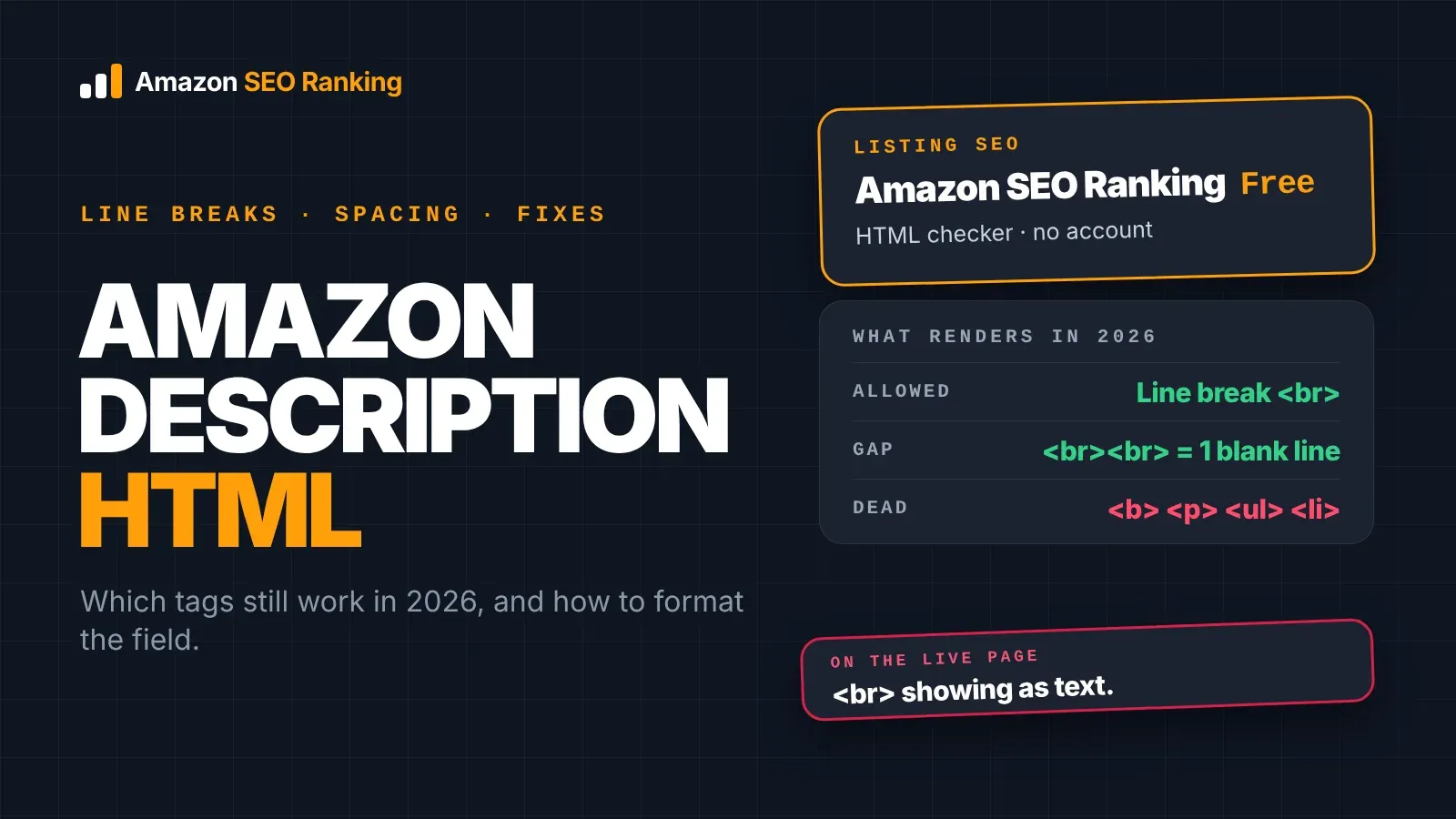
Amazon product description HTML is limited to one thing: the line break. Amazon's detail page rules say don't use HTML, JavaScript or other code on the detail page, and allow line breaks in the description as a special case. Bold, paragraph, heading and list tags stopped rendering in 2021, so a well-formatted description today is plain text, split into short paragraphs with <br> tags, checked on the live page.
Most formatting problems sellers post about come from that gap between the rule and what they expected. The description shows as one block, the tags appear as text, or the spaces between paragraphs come out far larger than intended.
This guide covers what Amazon allows, how to format the field step by step, why those three problems happen and how to fix each one.
Key Takeaways (TL;DR)
- Allowed: line breaks only. Amazon's rule writes it as
</br>; sellers report<br>and<br/>working too, with no spaces inside the tag. - Not rendered:
<b>,<p>,<ul>,<li>, headings and inline styles. Amazon stopped supporting them on July 30, 2021 in the US. - Paragraph gap: two breaks (
<br><br>) between paragraphs. One break starts a new line with no gap. - Large spaces: usually stacked breaks, leftover old tags, or a feed that adds its own breaks on top of yours.
- One big block: pressing Enter in the editor doesn't create a visible break. Type the tag.
- Character count: tags count toward the 2,000-character limit. Each
<br><br>uses 8. - Need bold, images or layout? That's A+ Content, which replaces the description on the page once published.
Amazon Product Description HTML: at a Glance
The table sums up what renders, what doesn't and what to do instead. Each row is covered in detail below.
| Element | Status in 2026 | What to do instead |
|---|---|---|
Line break (<br>, </br>, <br/>) | Allowed in the description | One break for a new line, two for a paragraph gap |
Bold (<b>, <strong>) | Not supported since 2021 | Open a paragraph with a plain label such as "Care:" |
Paragraph (<p>) | Not supported since 2021 | Separate paragraphs with <br><br> |
Lists (<ul>, <ol>, <li>) | Not supported since 2021 | A dash or number at the start of each line, one break per item |
Headings (<h1> to <h6>) | Not supported | A short label line followed by a break |
| Enter key in the editor | Not shown as a break | Type the tag |
| Tags and character count | Count toward 2,000 characters | Budget 40 to 80 characters for breaks |
| Bold, images, comparison charts | A+ Content only | Brand Registry sellers use A+ modules |
What HTML Does Amazon Allow in Product Descriptions?
Amazon allows one piece of HTML in the product description: the line break. Everything else on the detail page, including the title and bullets, takes no code at all.
The current wording sits in Amazon's product detail page rules, and it hasn't changed since the 2021 announcement. If a guide tells you otherwise, check its date.
The 2021 Change and Why Amazon Made It
Before 2021, sellers used <b>, <p> and list tags to build bold headers and bullet lists inside the description. In May 2021, Amazon posted a Seller Central announcement telling sellers to remove HTML tags from their listings, with a July 17 deadline for the US.
Amazon then pushed the date back. EcommerceBytes reported the US deadline moved to July 30, 2021, and quoted Amazon's reasons: security, and compatibility with devices that don't display HTML. After that date, descriptions with unsupported tags stopped showing the formatting.
The "non-HTML devices" reason still applies. Voice shopping and AI assistants such as Alexa for Shopping read the text of a listing, and markup adds nothing for them. Clear sentences do: Amazon SEO Ranking's audit grades this in its AI-Readiness category, and our guide to Amazon Rufus and COSMO SEO covers what those systems read.
`<br>`, `</br>` or `<br/>`: Which Line Break to Use
Amazon's rule writes the tag as </br>, which is unusual. In standard HTML the line break is <br> (or <br/> in XHTML), and </br> is technically a closing tag with nothing to close.
Sellers report mixed results in the forums. One seller on the European Seller Forums tried `<br>`, `</br>` and `<br/>` and saw all three show up as text, while replies in the same thread said <br> and <br/> work as long as there are no spaces inside the tag. On the US forums, the accepted advice in a thread about descriptions not formatting correctly was </br> for a new line and </br></br> for a paragraph gap.
Pick one form, use it everywhere in the field, and check the live page after Amazon processes the update. If your first choice shows as text, switch to Amazon's written form, </br>.
What Happens to Bold, Lists and Paragraph Tags Now
Amazon's announcement said a line with an unsupported tag might be removed or shown without HTML formatting, depending on the tag. Either outcome hurts: a missing line can drop a fact shoppers needed, and a line shown without formatting can leave stray text or odd spacing.
Older listings are where this shows up most. A description written in 2019 with <b> headers and <ul> lists may still sit in your catalog, and nobody has looked at it since. Leftover tags are a content-rule problem as much as a display one: Amazon's rule bans the code, and the listing shows the result without telling you.
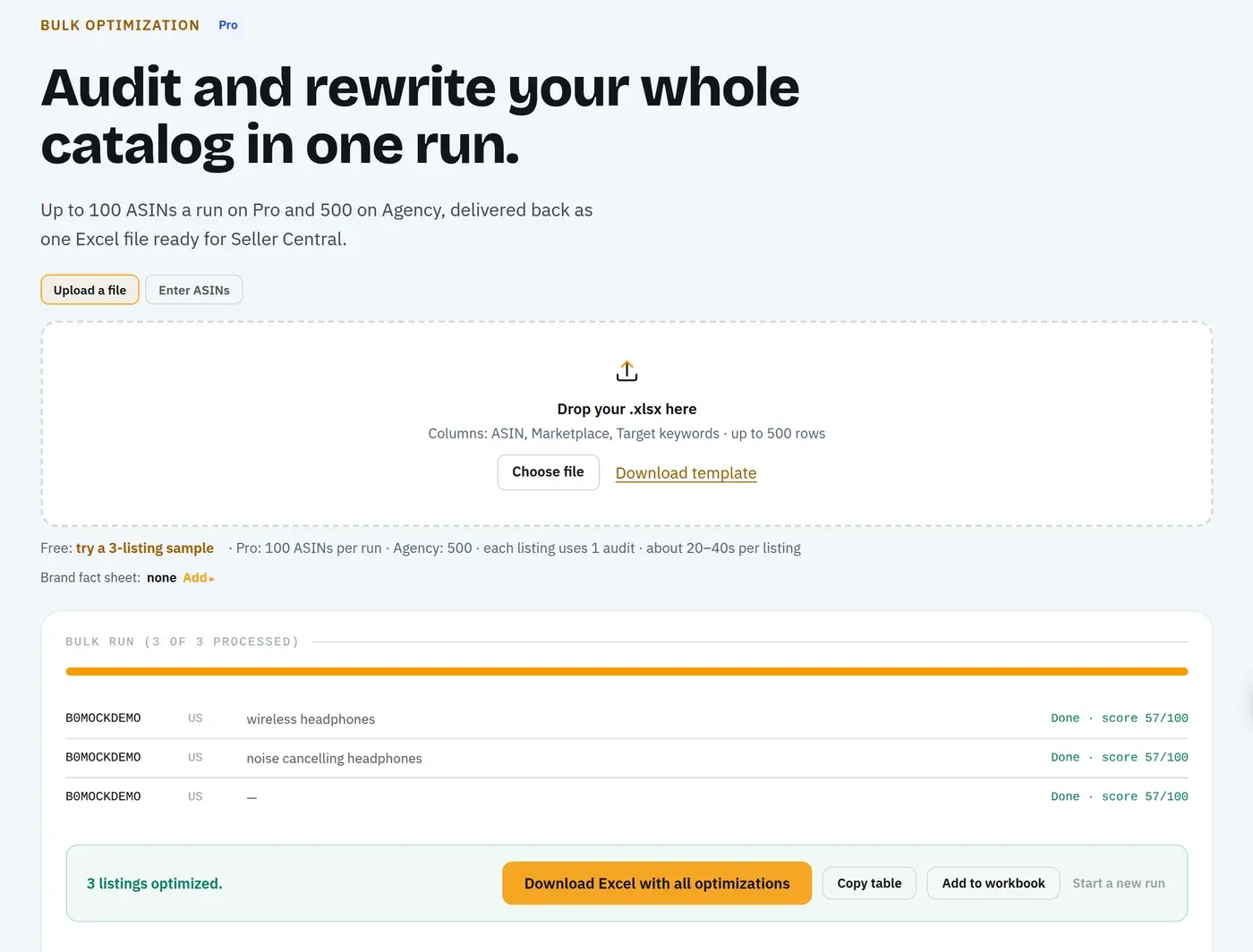
To find them on one listing, paste the description into the free Character Limit Checker, which flags HTML along with promotional wording and contact details. On Pro and Agency, the Compliance Risk Scanner checks live copy for banned formatting on every audit. For a whole catalog, search your inventory file for <b, <p, <ul and <li, or run Bulk Optimization, which audits and rewrites up to 100 ASINs per run on Pro and 500 on Agency.
How to Format an Amazon Product Description in 6 Steps
These steps format an Amazon product description from a blank draft to a checked live page. They assume you already know what the description should say; our guide to the Amazon product description covers the content side.
1. Plan Three to Five Short Paragraphs
Give each paragraph one job: who the product is for, how it's used, care, compatibility, what's in the box. Two or three sentences each.
Short paragraphs matter more on a phone, where a 2,000-character block fills several screens.
2. Write the Text Plain, Outside Word or Google Docs
Draft in a plain text editor, or paste into one before uploading. Word processors carry smart quotes, hidden formatting and their own line endings, and none of that is under your control once it reaches Amazon.
Leave out bold, italics and emoji. They won't render, and emoji fall under the same style rules that bar decorative characters elsewhere in the listing.
3. Add the Line Breaks by Hand
Put <br><br> at the end of each paragraph except the last. For a list, end each line with a single <br>.
Don't add breaks at the end of the field, and don't stack three or more in a row. Both create empty space with nothing under it.
4. Count Characters With the Tags Included
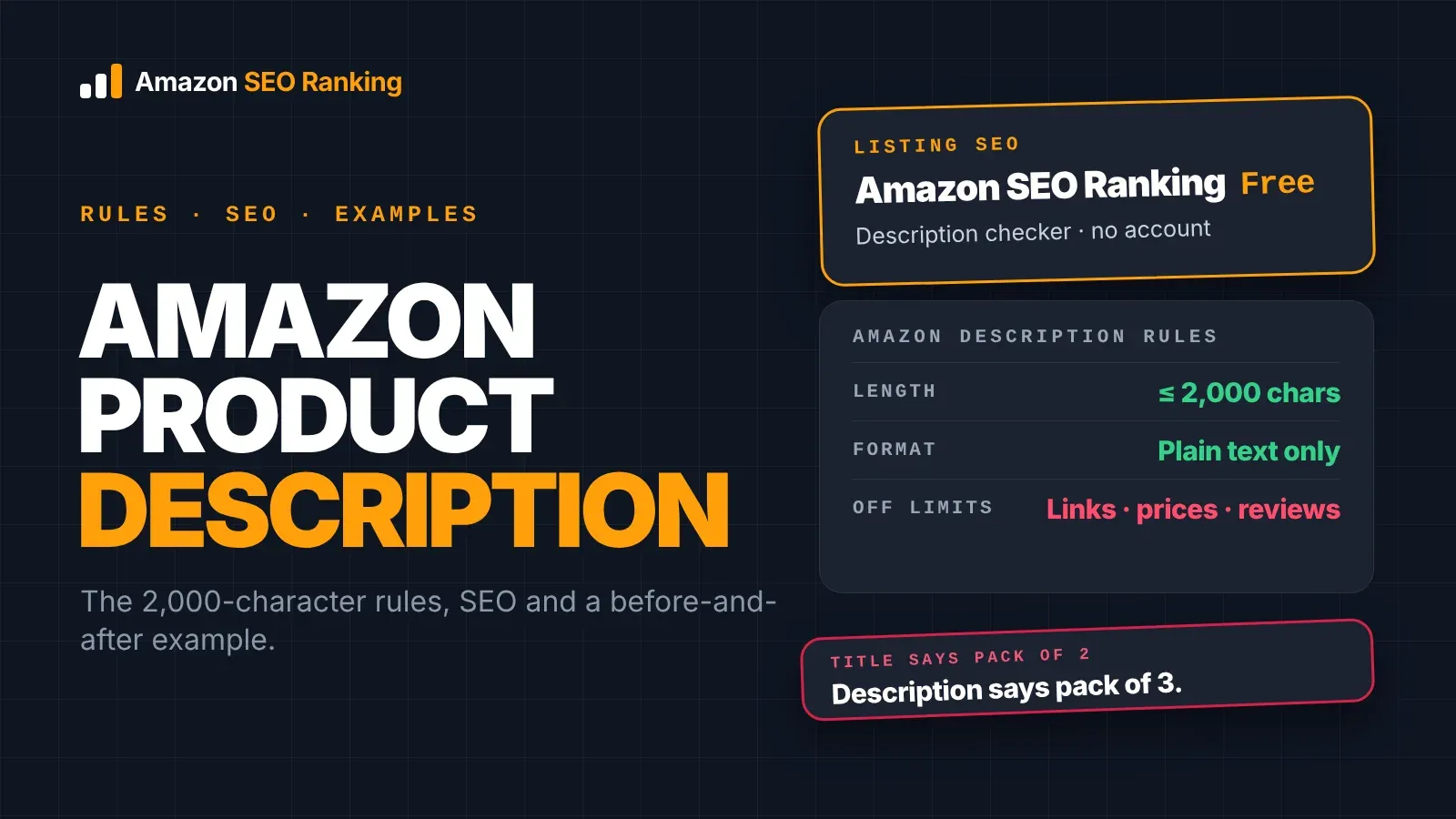
The description holds 2,000 characters, and tags are characters. A description with five paragraph gaps spends 40 characters on <br><br> alone; ten list lines add another 40.
Count the final text, tags included, before uploading. Our free Amazon product description character limit checker counts the field against 2,000 characters as you type, with no account.
5. Upload Through Seller Central or a Flat File
In Seller Central, open the listing's edit page and paste the text into the Product Description field. To format Amazon product description fields for many listings at once, use the inventory file and paste the same text, tags included, into the description column.
If tags show up as text after a Seller Central edit, try the same text through a flat file, a fix sellers suggest in this Sellers Ask Sellers thread. Also confirm you're editing the description field, since the bullets and title accept no tags at all.
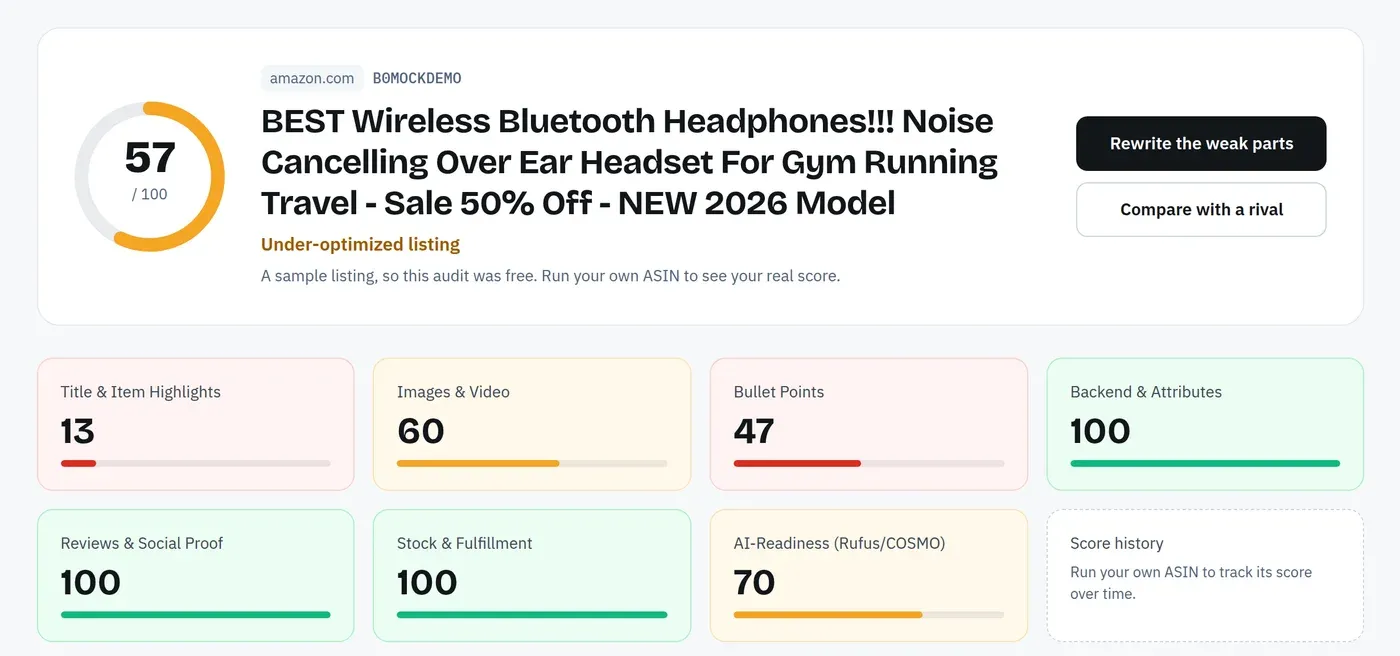
Before you upload a rewritten description, check it against the live listing. Amazon SEO Ranking's draft audit takes the new text, keeps the live copy for any field you leave blank, and flags pack-count mismatches and claims before Amazon indexes the change. On Pro and Agency, the compliance scan runs on the draft too, so leftover formatting gets caught before it goes live. If the new copy came from an AI writer, ours included, check that the <br><br> gaps are where you want them before pasting.
6. Check the Live Page on Desktop and in the App
Updates can take time to appear. Once they do, open the listing on a computer and in the Amazon app, and scroll to the description on both.
Look for three things: tags shown as text, one unbroken block, and gaps larger than one blank line. Each has a fix in the next section.
Amazon Product Description Line Break Problems and Fixes
Three problems account for most forum threads about Amazon product description line break formatting, and each has a different cause.
| What you see | Likely cause | Fix |
|---|---|---|
| Oversized spaces between paragraphs | Stacked breaks, leftover tags, or doubled breaks from a feed | Clean the stored text down to <br><br> between paragraphs |
| One unbroken block of text | Enter key used instead of tags | Type <br> tags |
| Tags visible as text | Spaces inside the tag, wrong field, or a form that didn't parse it | Remove spaces, try </br>, or upload by flat file |
Why Such Large Spaces in an Amazon Product Description?
Large spaces in an Amazon product description almost always mean more breaks reached the page than you meant to send. Each <br> adds a line. Two give you one blank line between paragraphs, and every extra one adds another blank line.
The common sources:
- Stacked tags.
<br><br><br><br>between paragraphs, often added to "make room" when the gap looked small in a preview. - A feed or listing tool that converts your line endings into breaks. If the tool turns each Enter press into a
<br>and you also typed<br><br>, every paragraph gets four. - Leftover pre-2021 tags. A
<p></p>pair or an empty<b></b>between two sets of breaks can leave a blank line once Amazon drops it. - Breaks at the end of the field, which add space under the last paragraph.
To fix it, look at the text Amazon actually stores, not your draft. Download the listing in an inventory file or open the Seller Central edit page, delete every tag that isn't a line break, and reduce each gap to exactly two breaks. Then re-upload and check the live page again.
Why Does My Description Show as One Block?
The description field doesn't treat a pressed Enter key as a line break. A seller on the Seller Forums described it well: whatever spacing they used, the text came out as one continuous paragraph.
The fix is to type the tag where you want each break. If the page still shows one block after that, the tag is probably being shown as text or stripped, which the next problem covers.
Why Do the Tags Show Up as Text?
When <br> appears on the page as written, Amazon didn't read it as a tag. The usual causes are a space inside the brackets (< br >), a typo, or a field that doesn't accept code.
Remove any spaces, try Amazon's written form </br>, and if Seller Central still shows the tag as text, submit the same description through an inventory file. Sellers report different results by marketplace and upload method, so the live page is the only reliable test. If you sell the same product in several storefronts, check the live listing in each one, not only your home marketplace.
Amazon Product Description Formatting Without HTML Tags
Good Amazon product description formatting in 2026 uses plain text tricks that render everywhere, including on screens and devices that ignore markup.
These work without code:
- Labels at the start of a paragraph. "Use:", "Care:" and "In the box:" give the eye an anchor where a bold header used to be.
- Dashes or numbers for lists. Start each line with "- " or "1. " and end it with a single
<br>. - Short sentences next to longer ones. Varying length makes a block easier to scan than uniform 25-word sentences.
Avoid ALL CAPS headers as a bold substitute. Amazon's style rules bar ALL CAPS in listing copy, and they read as shouting on a phone.
Before and After: A Formatted Description
The listing below is fictional. The "before" is the kind of pre-2021 HTML still found in older catalogs.
Before (stored text)
<p><b>KEEPS DRINKS COLD ALL DAY</b></p><ul><li>Double-wall stainless steel</li><li>Leakproof screw lid</li><li>Fits most car cup holders</li></ul><p>Pack of 2.</p>
Amazon no longer renders any of these tags, so the lines either lose their formatting or drop off the page. The header is also in ALL CAPS.
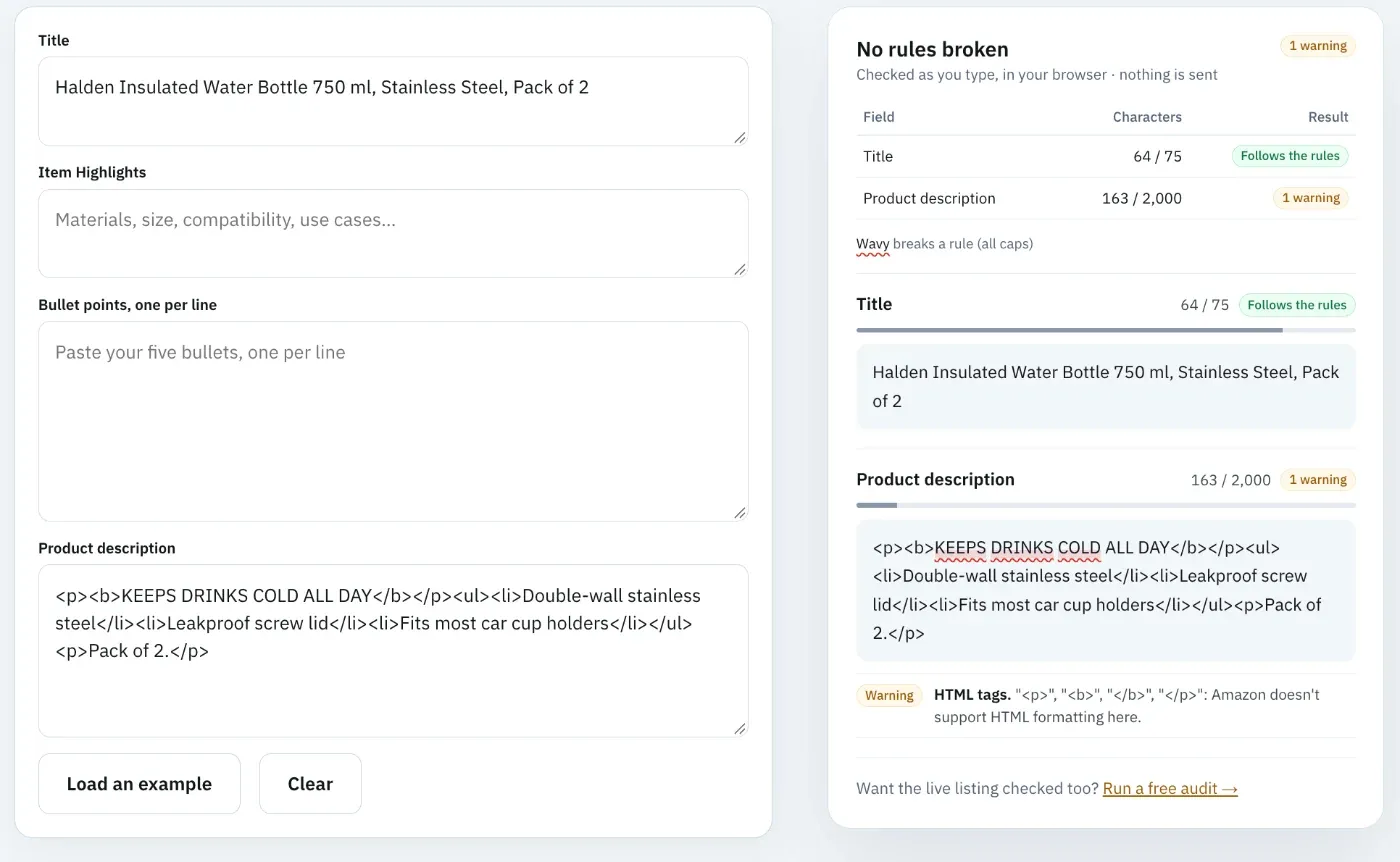
After (stored text, about 440 characters)
Halden's 750 ml bottle is sized for a full day at a desk or a long walk, and this set includes two. Each bottle has double-wall stainless steel insulation.<br><br>Use: the screw lid seals for carrying in a backpack, and the flip straw opens with one hand.<br><br>Care: wash the lid and straw on the dishwasher's top rack. Hand wash the bottle body.<br><br>In the box:<br>- Two 750 ml bottles<br>- Two straw lids<br>- One cleaning brush
Shoppers see four short paragraphs with one blank line between each, and a three-line list at the end. The text carries the structure, so it reads the same with or without the breaks.
HTML Editors, Converters and KDP Guides: What to Check
Search for "Amazon product description HTML" and most of the first page is free HTML editors and converters. Several still output <b> and <p> tags, which Amazon hasn't rendered since 2021. Use them only if you can set the output to line breaks only, and read the code before you paste it.
A second source of confusion is Kindle Direct Publishing. KDP's help page for book descriptions lists supported tags including bold, italics, headings and lists. That applies to book descriptions in KDP, not to product listings in Seller Central. A guide that recommends <h4> or <b> for "Amazon descriptions" may be written for authors.
| Source | What it supports | Use it for seller listings? |
|---|---|---|
| Seller Central detail page rules | Line breaks only | Yes, this is the rule |
| KDP book description help | Bold, italics, headings, lists, line breaks | No, books only |
| Third-party HTML converters | Varies; many output <b> and <p> | Only with line-break-only output |
When A+ Content Is the Better Format
If you want bold headers, images, comparison charts or a layout, the description field can't give you any of them. A+ Content can. Brand Registry sellers build it from modules, and once it's published for an ASIN, A+ Content replaces the product description on the page.
Keep the plain description accurate anyway. It still shows on ASINs without A+, and it's the text you control if A+ is ever removed. Our Amazon A+ Content guide covers the modules and how to write them from the same facts.
Formatting is also one of the smaller listing problems. A description with perfect spacing can still contradict the title's pack count or carry a health claim, and those cost more sales than a missing blank line. Our list of Amazon listing SEO mistakes covers the bigger ones.
Everything You Need to Know About Amazon Product Description HTML
| Topic | The short answer | Source or tool |
|---|---|---|
| Allowed HTML | Line breaks only, in the description field | Amazon detail page rules |
| Tag form | Amazon writes </br>; sellers report <br> and <br/> working | Seller Forums |
| When it changed | US support for other tags ended July 30, 2021 | Amazon announcement, EcommerceBytes |
| Why | Security and compatibility with non-HTML devices | Amazon announcement |
| Unsupported tags | The line may be removed or shown without formatting | Amazon announcement |
| Paragraph gap | Two breaks between paragraphs | Seller Forums |
| Large spaces | Stacked or doubled breaks, leftover tags, trailing breaks | Check the stored text |
| One block of text | Enter key isn't a break; type the tag | Seller Forums |
| Character limit | 2,000 characters, tags included | Free Character Limit Checker |
| Lists | Dash or number per line, one break each | Plain text |
| Bold and layout | A+ Content only | Brand Registry |
| KDP tag lists | Apply to books, not product listings | KDP help |
Check Your Listing Free With Amazon SEO Ranking
Leftover HTML, broken spacing and banned formatting are content-rule problems, and Amazon doesn't tell you when a line gets dropped. Amazon SEO Ranking finds them. The free Character Limit Checker flags HTML in any description you paste, and the Compliance Risk Scanner on Pro and Agency checks live copy for banned formatting. The draft audit checks a rewrite against the live listing before you upload it, so the fix doesn't introduce a new mismatch.
Each audit pulls the live listing and scores it against a published 12-criteria rubric, with every weight and pass rule public, so each finding traces to a rule rather than a black-box score. It also compares pack counts across the title, bullets, description and spec table, and flags health claims and claims your product data doesn't support. For catalogs, Bulk Optimization runs the audit and rewrite on up to 100 ASINs per run on Pro and 500 on Agency.
It's built for sellers cleaning up catalogs that still carry pre-2021 copy, sellers listing the same product in several Amazon storefronts, and agencies inheriting client listings nobody has checked in years. It's trusted by eRetail Search specialists at Nestlé and eCommerce SEO services agencies such as Reach AI.
The free plan includes 3 audits a month with AI rewrites, and no credit card is required. Run a free Amazon listing audit on your oldest ASIN before you re-upload its description.
FAQ
Can you use HTML in an Amazon product description?
You can use HTML in an Amazon product description only for line breaks. Amazon's product detail page rules say not to use HTML, JavaScript or other code on the detail page, and allow line breaks in the description as a special case. Bold, paragraph, list and heading tags stopped rendering on July 30, 2021 in the US. A line containing an unsupported tag may be removed or shown without formatting.
How do I add a line break in my Amazon product description?
You add a line break in your Amazon product description by typing a <br> tag where you want the new line, because pressing Enter doesn't create a visible break. Use two tags, <br><br>, for a blank line between paragraphs. Amazon's rule writes the tag as </br>, and sellers report <br> and <br/> also working when there are no spaces inside the brackets. Check the live page afterwards on desktop and in the app.
Why are there such large spaces in my Amazon product description?
Large spaces in an Amazon product description come from more line breaks reaching the page than you intended. Each <br> adds a line, so three or four in a row create several blank lines. A feed that converts your line endings into breaks on top of the tags you typed doubles every gap, and leftover pre-2021 tags or breaks at the end of the field add more. Open the stored text in Seller Central or an inventory file and reduce each gap to exactly two breaks.
Can I use bold text in an Amazon product description?
You can't use bold text in an Amazon product description, because <b> and <strong> tags stopped rendering in 2021. Start a paragraph with a plain label such as "Care:" or "In the box:" to give shoppers the same anchor. Avoid ALL CAPS as a substitute, since Amazon's style rules bar it. Bold headers and images are available through A+ Content for Brand Registry sellers.
Do HTML tags count toward the 2,000-character limit?
HTML tags count toward the Amazon product description's 2,000-character limit, because every character in the field counts. A <br> tag is 4 characters, so each paragraph gap of <br><br> uses 8. A description with five paragraph gaps and a ten-line list spends about 80 characters on tags. Count the final text with the tags included before uploading.
Can you use bullet points in an Amazon product description?
You can't use HTML bullet points in an Amazon product description, because <ul> and <li> tags aren't supported. Start each list line with a dash or a number and end it with a single <br>, which displays as a simple list. Keep the five main benefits in the bullet point field above the description, where Amazon expects them.
Does HTML formatting affect Amazon search ranking?
HTML formatting in the Amazon product description doesn't add ranking value, and Amazon doesn't publish any ranking weight for it. What matters for search is the text: relevant keywords in readable sentences that match the rest of the listing. Unsupported tags can cost you text, since Amazon said a line with one may be removed. Line breaks help shoppers read the field without changing what search sees.
Is it worth formatting the description if A+ Content replaces it?
Formatting the description is worth it even with A+ Content, because the plain description still shows on any ASIN without published A+ and on listings whose brand isn't in Brand Registry. Formatting takes a few minutes: short paragraphs and a few line breaks. Keep the description accurate and consistent with the title and bullets so the page never contradicts itself if A+ is removed or rejected.
Paste your description and see every rule it breaks before Amazon does. Free, no account.
Check my description free