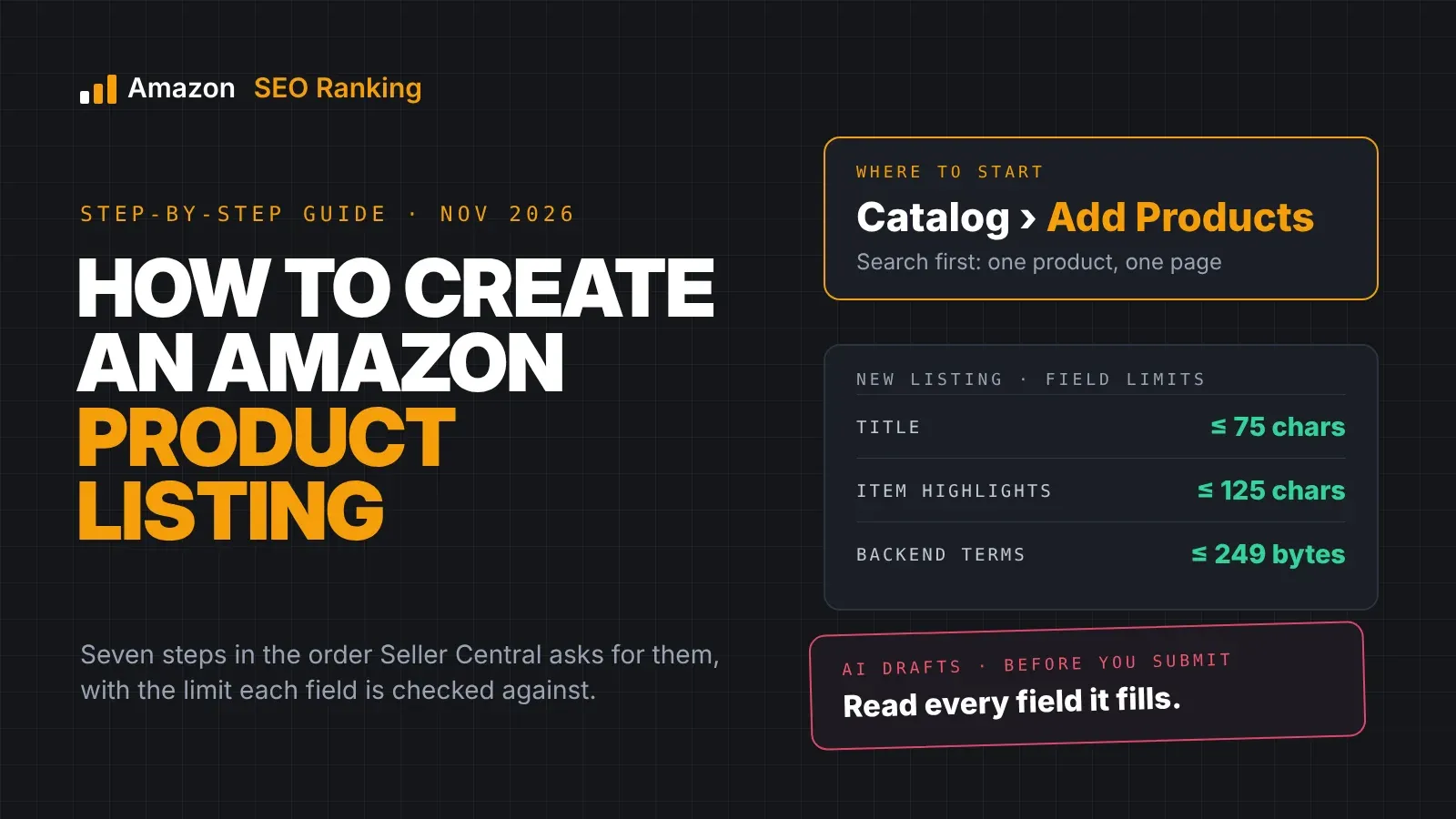
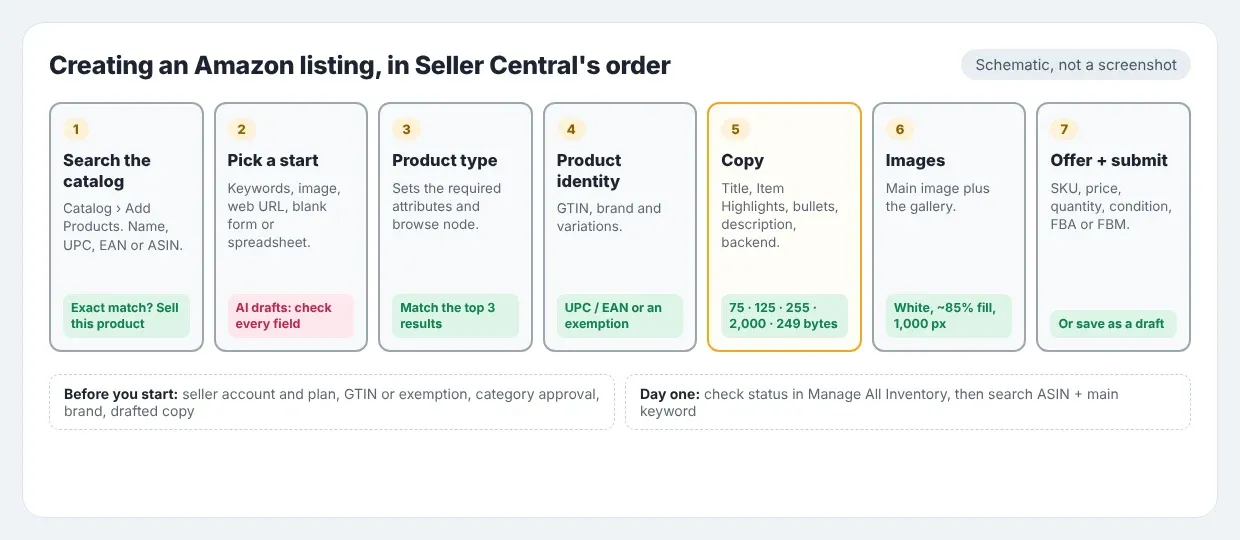
To create an Amazon product listing, go to Catalog > Add Products in Seller Central and search for your product first. If it already exists, you add your offer to that page. If it doesn't, you choose Create a new listing, pick a product type, then fill in the product ID, brand, title, bullets, description, images and offer (price, quantity, condition, fulfillment) before you submit.
The form takes an afternoon. Getting the inputs right takes longer, and that's where most new listings fail: a missing GTIN, a gated category, or a title still written for the old 200-character limit. Since July 27, 2026, titles over 75 characters get rewritten by Amazon's AI, so copy prepared from an old template is out of date before you paste it.
This amazon listing tutorial covers how to create an Amazon listing from scratch: the seven steps in the order Seller Central asks for them, with the limits each field is checked against, a worked example of new-listing copy run through our checks, and the listing issues that stop a product going live.
Key Takeaways (TL;DR)
- Search the catalog before you create anything. One product gets one product page, so if yours exists, you sell on that page.
- You need a GTIN (a UPC in the US, an EAN in Europe) for most products, or an approved GTIN exemption.
- Amazon's Individual plan costs $0.99 per item sold; Professional costs $39.99 a month and is the plan with bulk listing tools.
- Titles are capped at 75 characters, with 125 more in Item Highlights. Bullets can run to 255 characters, but only about 200 show in full on mobile.
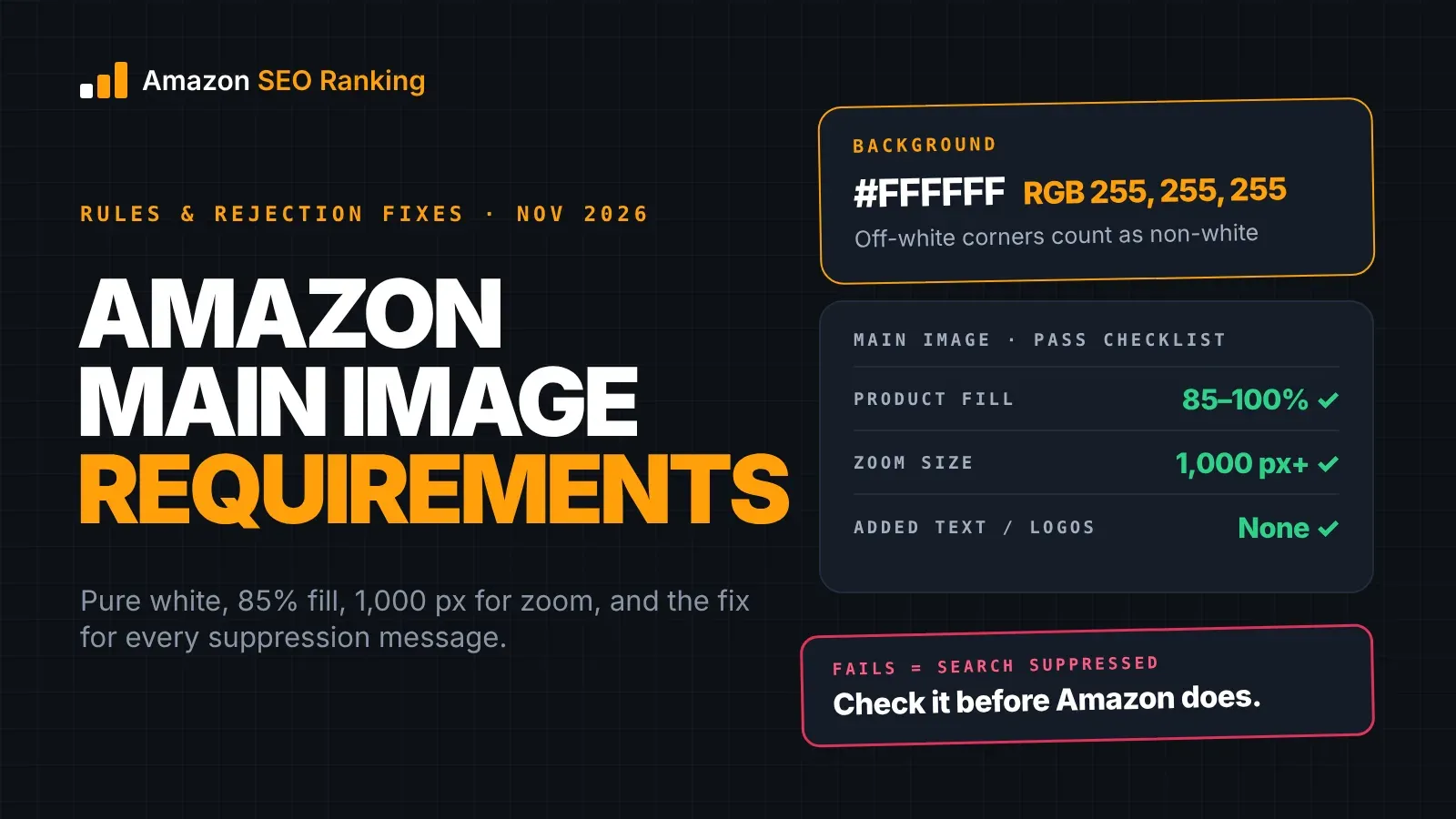
- The main image needs a pure white background, with the product filling about 85% of the frame.
- Amazon's AI can draft your listing from a photo, a few keywords or a web URL. Read every field it fills before you submit.
- After the listing is live, search Amazon for your ASIN plus your main keyword to confirm it's indexed.
Amazon Product Listing: at a Glance
| Question | Answer |
|---|---|
| Where do you start? | Seller Central > Catalog > Add Products |
| First check | Search the catalog by name, UPC, EAN or ASIN |
| Product exists | Add your offer to that page ("Sell this product") |
| Product is new | Create a new listing and pick a product type |
| Product ID | GTIN (UPC, EAN, JAN, ISBN) or a GTIN exemption |
| Title limit | 75 characters, plus 125 in Item Highlights |
| Bullets | Up to 255 characters each; about 200 show in full on mobile |
| Description | Up to 2,000 characters |
| Backend search terms | 249 bytes |
| Main image | Pure white background, product fills about 85% of the frame |
| Selling plan cost | $0.99 per item sold (Individual) or $39.99 a month (Professional) |
| Check after launch | Search your ASIN plus your main keyword |
Before You Start: What You Need to List a Product on Amazon
Five things decide whether the listing form goes smoothly. Sort them out first and the form itself is mostly copying and pasting.
A seller account and a selling plan
You need a Seller Central account before you can list anything. Amazon offers two plans: Individual at $0.99 per item sold, or Professional at $39.99 a month, with referral fees on top of either. Amazon suggests the Individual plan if you sell fewer than 40 items a month.
The plan also changes how you list. Individual sellers add products one at a time with static prices. Professional adds bulk listing through spreadsheets, which matters once you have more than a handful of SKUs.
A product ID (GTIN) or an exemption
Most categories require a Global Trade Item Number. In the US that's usually a 12-digit UPC; in Europe it's an EAN, in Japan a JAN, and books use an ISBN. Amazon's guide to product IDs explains how the GTIN is used both to match an existing listing and to create a new one.
If your product has no barcode (handmade items, some private label goods, bundles), you can request a GTIN exemption during listing creation. Amazon's help page says you apply again for each brand or category, and that you should wait 30 minutes after approval before listing. Enter the brand name exactly as it was approved, including capitals and spaces.
Approval for gated categories and brands
Some categories and brands need approval before you can sell in them. When that applies, Seller Central shows an "Apply to sell" button instead of letting you list. Plan for it before you order inventory, because approval can ask for invoices from your supplier.
Your brand situation
If you own the brand, consider registering a trademark and enrolling in Amazon Brand Registry. Brand owners get more control over the product page and A+ Content. Since July 2026 they also get 14 days to review Amazon's AI changes to titles and Item Highlights before they're applied.
Your content, drafted outside Seller Central
Write the copy in a document first, before you create Amazon listing content in the form. You'll want a keyword list with search volume, a 75-character title, an Item Highlights line, five bullets, a description, backend terms, and at least one compliant main image. Step 5 covers each field.
Step 1: Check Whether the Product Already Exists
Go to Catalog > Add Products and search by product name, UPC, EAN or ASIN. If you find an exact match (same brand, model, size, color and pack count), select the condition and click Sell this product. You then add your SKU, price, quantity and fulfillment method, and your offer joins the existing page.
If there's no exact match, choose to create a new listing. Don't create a second page for a product that already exists. Amazon's product detail page rules tell sellers not to create duplicate pages for a product that already has one, and to create new pages only for new products or versions.
A near-match is the tricky case. A 6-pack listed where you sell a 12-pack is a different product and needs its own listing, otherwise buyers receive something that doesn't match the page. Pack count mismatches are one of the most common causes of "not as described" returns.
Step 2: Choose How to Start the New Listing
Amazon listing creation starts on the List Your Products page, which gives you several starting points. They all lead to the same listing form.
| Starting point | What you provide | What Amazon does |
|---|---|---|
| Keywords | A few words describing the product | AI suggests a product type and drafts fields |
| Product image | A photo of the product | AI suggests a product type and drafts fields |
| Web URL | A link to the product on your own site | AI imports your product data into a draft |
| Blank form | Nothing up front | You fill in every field yourself |
| Spreadsheet | A category template file (Professional) | Lists many products at once |
Amazon describes the keywords and product image tabs as generative AI options, and says that if you list using a web URL, it uses AI to enter your product data automatically.
The AI drafts save time on attributes. They also make things up. A drafted title can run past 75 characters, and a drafted bullet can claim "BPA-free" or "organic" when nothing in your product data says so. Treat every AI-filled field as a first draft and check it against the facts on your packaging before you submit.
Step 3: Pick the Product Type and Category
The product type decides which attributes Amazon asks for, which ones are required, and which browse node your product lands in. Amazon usually suggests one based on your keywords or image. Accept it only if it matches how shoppers would look for the product.
A quick test is to search Amazon for your main keyword and open the top three organic results. Check their category in the "Product information" section. If all three sit in Kitchen > Cutting Boards and your suggestion is Home Décor, change it.
The wrong product type costs you twice. Shoppers who filter by category won't find you, and the form may not ask for the attributes your competitors fill in, such as material or dimensions. Category placement also counts toward the Backend & Attributes criterion in our 12-point audit.
Step 4: Fill In Product Identity (GTIN, Brand, Variations)
The Product identity tab asks for the product ID, brand name and whether the product has variations. Enter the GTIN without spaces, and use the brand name exactly as it appears on the packaging (and in Brand Registry, if you're enrolled). A generic product without a brand can use "Generic" in some cases, but a branded product listed as Generic is hard to fix later.
Variations
Variations group the same product in different sizes, colors or flavors under one parent page. Create them only when the products differ by one controlled attribute. A water bottle in three colors is a variation family. A water bottle and a lunch box from the same brand are not.
If you're listing without GTINs, note one limit: an Amazon forum moderator explains that the Add a Product tool can't create a variation listing without a GTIN. The workaround is to create each child listing on its own, then group them with the Variation Wizard.
Step 5: Write the Title, Item Highlights, Bullets and Backend Terms
This is the part of the amazon seller listing that decides whether shoppers find and click it, because it's the text every product listing Amazon shows in search is matched against. Each field has a limit and a job.
| Field | Limit | Job |
|---|---|---|
| Title | 75 characters | Brand, product type, main keyword, key variation attribute |
| Item Highlights | 125 characters | Material, compatibility, sizes, use cases |
| Bullets | Up to 255 characters each | One benefit and the spec that proves it, per bullet |
| Description | 2,000 characters | Plain explanation of what's in the box and how it's used |
| Backend search terms | 249 bytes | Synonyms and terms the visible copy doesn't hold |
The title and Item Highlights
Amazon's 75-character title rule applies to all categories except media. You keep 200 visible characters in total: Amazon confirms they're split between Item name (75) and Item highlights (125). Put the brand and the most important variation attribute in the title, and the comparison details in Item Highlights. Our guide to Amazon item highlights has seven examples by category.
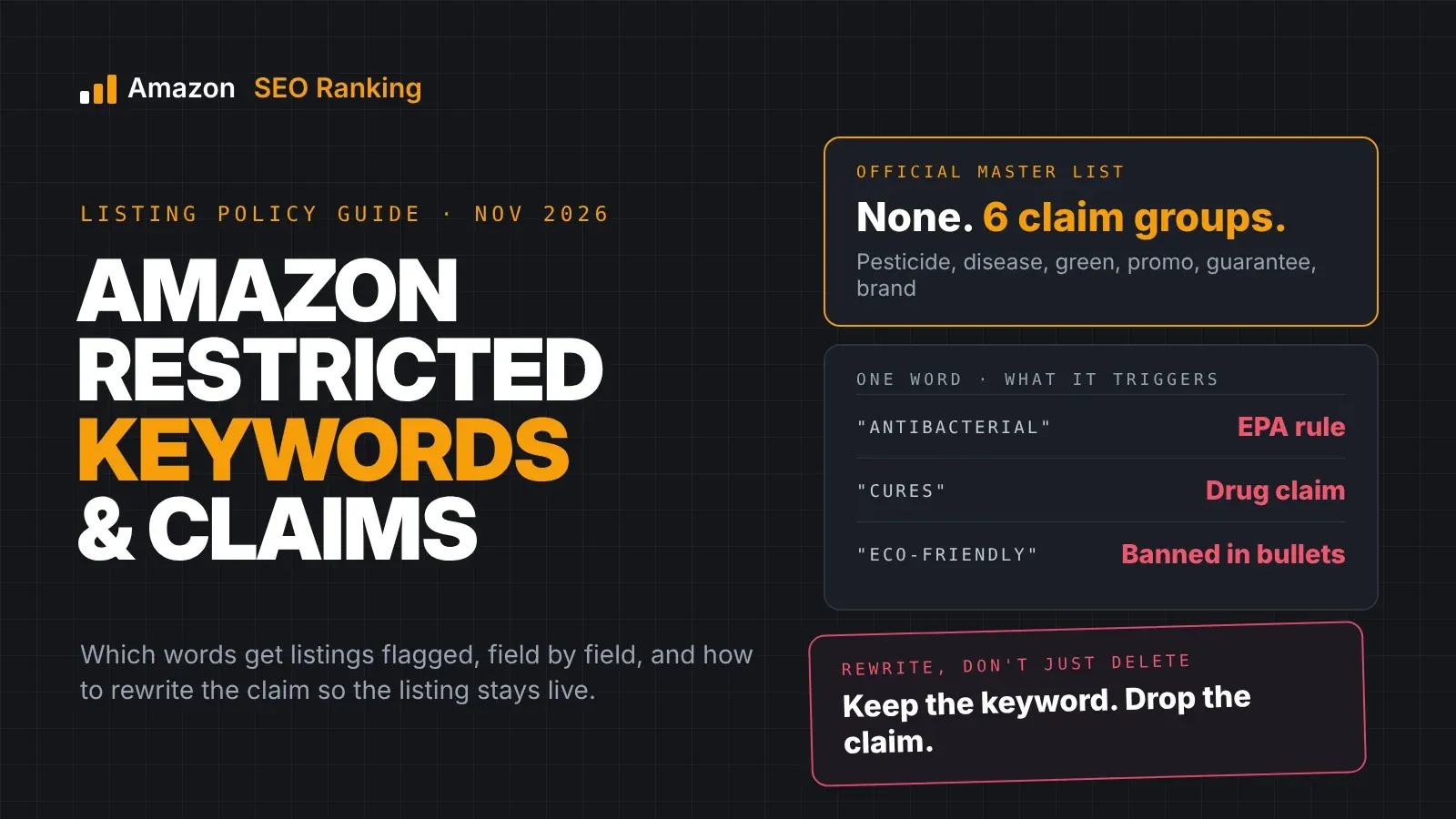
Leave out promotional words ("best", "#1", "free"), ALL CAPS and decorative symbols. They read as advertising, and Amazon's checks treat them that way.
Bullets and description
Write five bullets, each with one benefit and the number or material behind it. Amazon allows up to 255 characters, but mobile cuts bullets off at about 200, so we hold them under 200. Use sentence case for any bullet header. The description can run to 2,000 characters; use it for what's in the box, care instructions and anything a bullet can't hold.
Keywords and backend search terms
Pick keywords by search demand, not by guesswork. Our Amazon keyword search volume tool returns estimated monthly Amazon searches for up to 1,000 phrases at once, across 16 marketplaces (a free account sees the first 3 rows of each search). Put the highest-volume phrase that describes the product early in the title. To see which listings you'll compete with, the Competitors tab (Pro, US, Egypt, Saudi Arabia and UAE) works even for a brand-new listing: if it ranks for nothing yet, it falls back to the top organic Amazon results for a phrase from your title.
The backend search terms field is invisible to shoppers and holds 249 bytes. Use it for synonyms, alternate spellings and terms that don't fit the visible copy, and don't repeat words already in your title or bullets. The free Amazon backend keywords checker counts the bytes and flags repeated words, with no account. Our post on Amazon search terms covers what belongs there.
Worked example: checking new-listing copy before submit
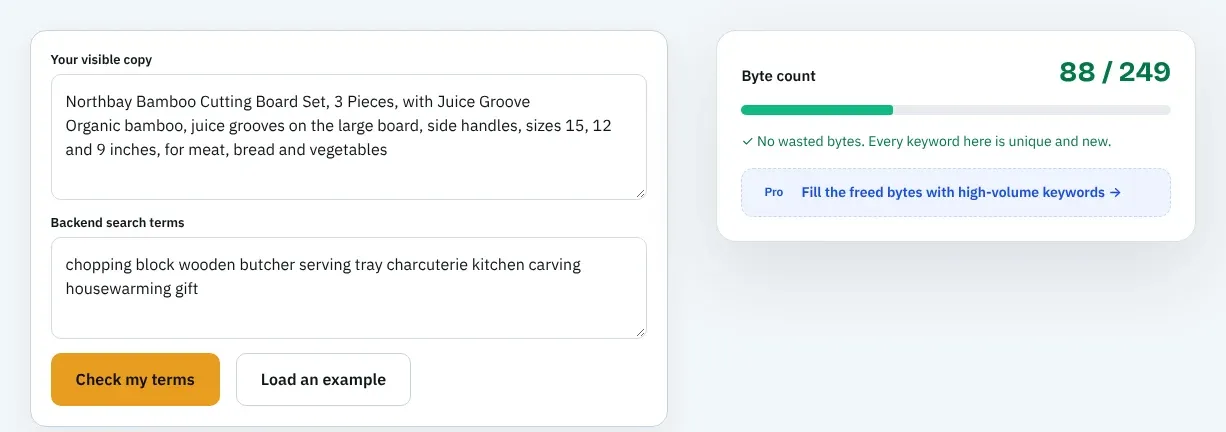
Here's a draft for a fictional brand, Northbay, the kind of copy many sellers paste into the form on day one:
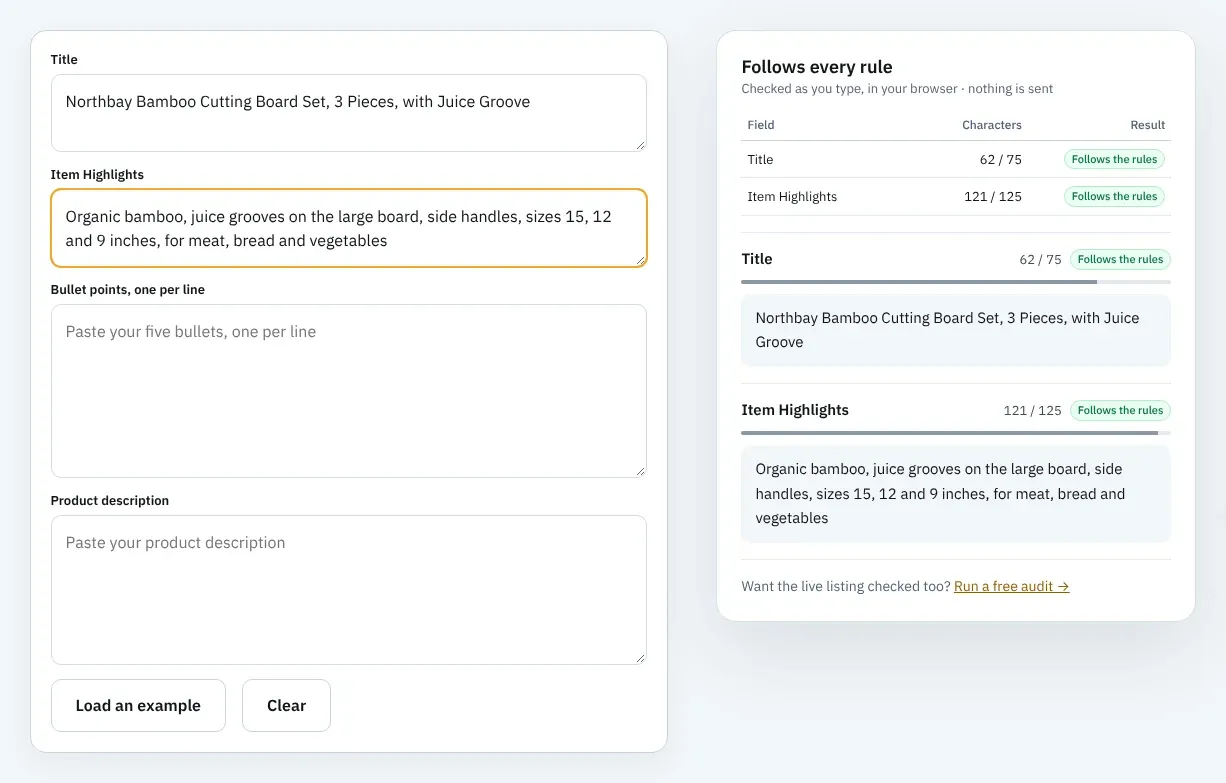
- Title (62 characters): Northbay Bamboo Cutting Board Set, 3 Pieces, with Juice Groove
- Item Highlights (121 characters): Organic bamboo, juice grooves on the large board, side handles, sizes 15, 12 and 9 inches, for meat, bread and vegetables
- Bullets: five, between 67 and 109 characters each
- Backend terms (88 bytes): chopping block wooden butcher serving tray charcuterie kitchen carving housewarming gift
On 18 November 2026 we ran it through check_listing_copy, the copy check in the Amazon SEO Ranking Claude connector, with a spec table listing the material as "Bamboo". Every field passed its length limit. One word failed: "organic".
The claim check flagged it because nothing in the spec table backs it up. The AI policy scan flagged it at medium severity too, as the kind of claim Amazon may ask a certificate for. The fix is to delete "Organic" (or write "Natural") unless you hold a valid organic certification, and to add it to the product attributes if you do.
You don't need a paid plan to catch it. The free audit runs the same consistency checks on every live listing, with no AI call, and flags product claims like "organic", "vegan" or "protein" that the spec table doesn't back. Run it the day the ASIN goes live and this exact flag shows up on the free plan. The connector's copy check (Pro and Agency) moves the same check to before you submit.
That's the pattern with new listings. Length is easy to count. The claims you can't prove are what cause trouble, and they tend to arrive when a listing for Amazon is adapted from a website or drafted by AI.
Step 6: Add Images That Pass Amazon's Rules
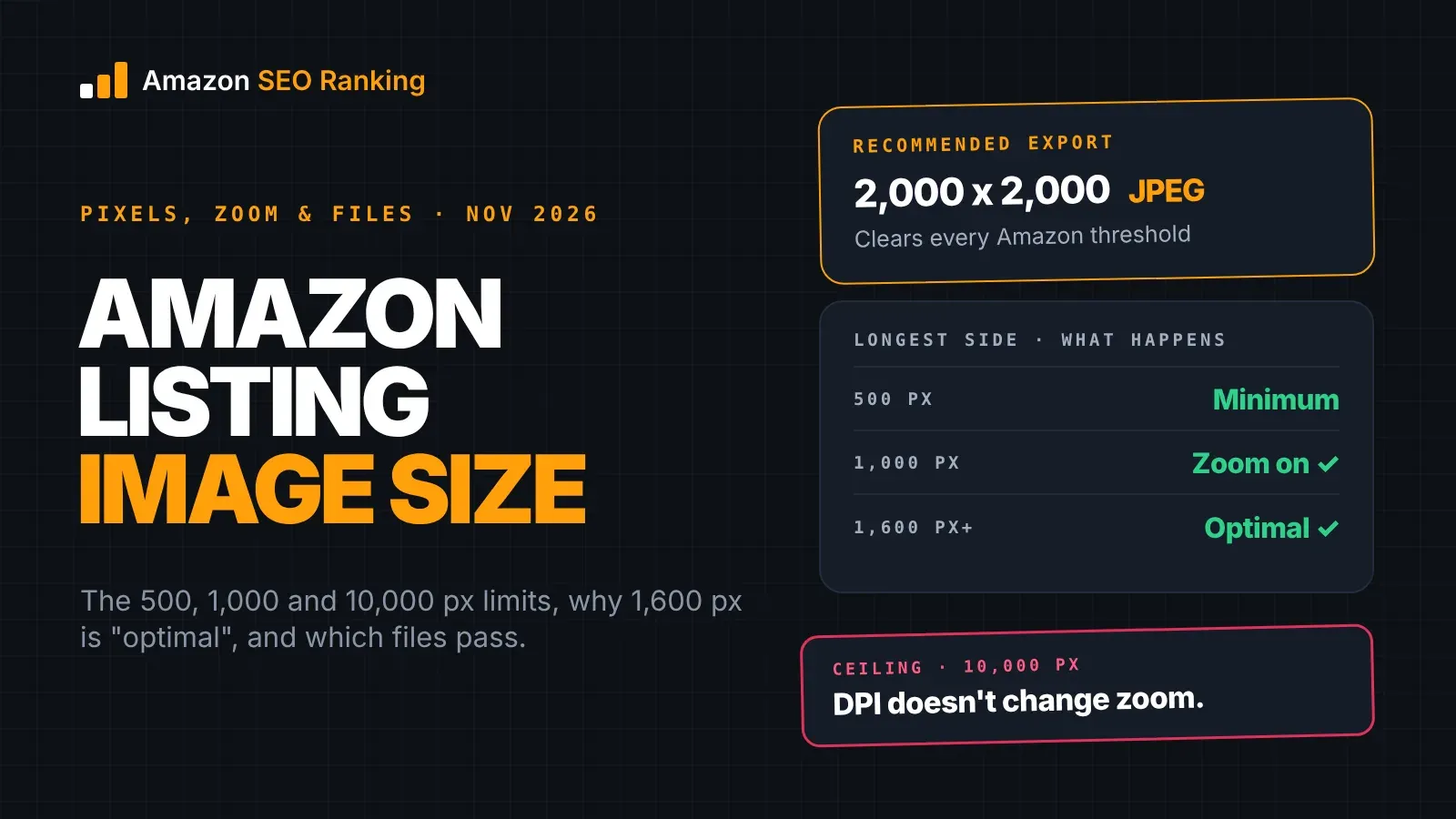
The main image needs a pure white background (RGB 255, 255, 255), with the product filling about 85% of the frame and no text, logos or watermarks. Images of 1,000 pixels or more on the longest side let shoppers zoom. A full gallery shows seven images.
Use the other slots for what the main image can't show: scale, the product in use, close-ups of materials, and an infographic with dimensions. Our page on Amazon product image requirements shows a passing main image next to a failing one.
Image problems are one of the most common reasons a new listing is suppressed. If your main image isn't ready, save the listing as a draft rather than submitting with a placeholder.
Step 7: Set Up the Offer and Submit
The Offer tab covers how you sell: your SKU (your own internal code), price, quantity, condition and fulfillment channel. Then you answer the safety and compliance questions for the product type, such as batteries, chemicals or age warnings.
FBA or FBM
An amazon fba listing means Amazon stores, picks, packs and ships your stock, and the offer is typically Prime-eligible. With FBM (fulfilled by merchant) you ship orders yourself. You choose the channel in the Offer tab; for FBA, the listing then needs a shipment of inventory to an Amazon fulfillment center before it can sell, and each unit carries an Amazon barcode (FNSKU).
Pick FBA when shipping speed and Prime eligibility matter to your buyers. Pick FBM for oversized, slow-selling or made-to-order products, where storage fees would outweigh the gain.
Submit or save as a draft
Click Submit when every required field is filled. If you're waiting on a GTIN exemption, category approval or a final image, choose Save as draft instead. Drafts keep your work without creating a half-finished product page.
After You Submit: Run a Day-One Check on the Live Listing
Open Manage All Inventory and check the listing's status. "Active" means the offer can sell. "Inactive" or "Suppressed" means something is missing or broken, and Seller Central shows the reason next to the listing.
Then check indexing. Search Amazon for your ASIN plus your main keyword (for example, "B0XXXXXXX bamboo cutting board"). If your product comes back, the keyword is indexed. Repeat for two or three phrases that appear only in Item Highlights or the backend terms.
Score the listing against a published standard
The day the ASIN goes live is the first day it can be measured, and the most useful first measurement is one you can check. Amazon SEO Ranking's Amazon listing quality checker scores the live listing 0 to 100 on 12 equally weighted criteria, with every pass rule published. They fall into seven categories, which double as a day-one checklist:
| Category | What to confirm on day one |
|---|---|
| Title & Item Highlights (3 criteria) | 75 and 125-character limits, main keyword early, no promotional wording |
| Bullet points (3) | Five bullets, under 200 characters, sentence-case headers |
| AI-readiness for Rufus and COSMO (2) | Copy answers the questions shoppers ask Amazon's AI assistant |
| Images & video (1) | Gallery count and a compliant main image |
| Backend & attributes (1) | The right category and browse node |
| Reviews & social proof (1) | Starts at zero for a new listing; the score shows what to build |
| Stock & fulfillment (1) | Prime eligibility, or "Not verified" when Amazon's data can't confirm it |
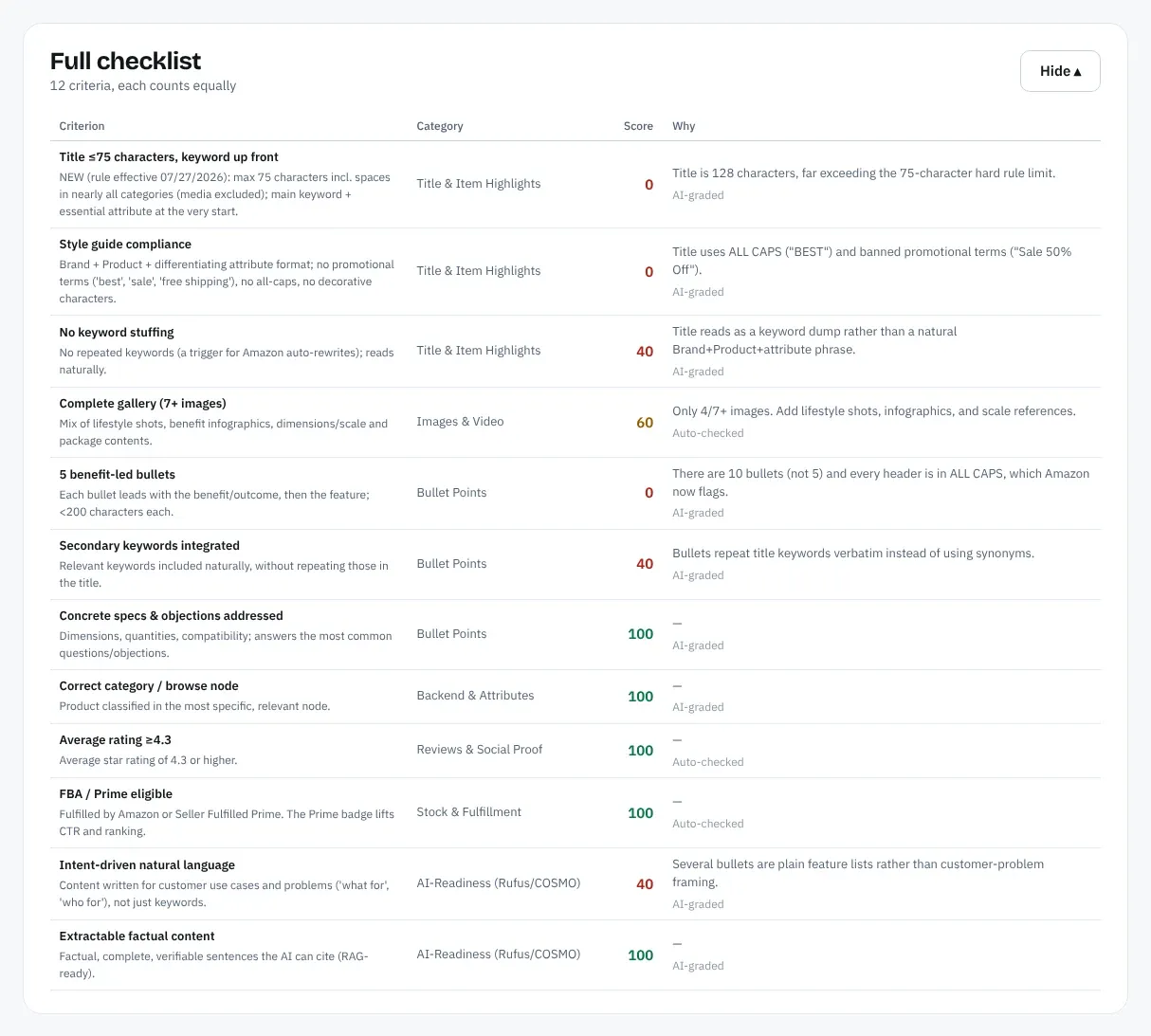
Each failed criterion comes back as a fix with the points it's worth, so you know which change to make first. The same audit flags pack counts that disagree between fields and claims your spec table doesn't support, on the free plan.
Make your first edits with a draft audit
New listings rarely stay as submitted. Amazon's AI may rewrite a title that's over 75 characters, a competitor may outrank you on your main keyword, or your first reviews may reveal a question the bullets don't answer. Each of those means editing copy on a listing that's now selling.
The Amazon listing rewriter rewrites whatever failed, grounded in the live listing's spec table and your brand fact sheet, and checks every draft for length, pack counts and unsupported claims before you see it. "Score this copy as a draft" then runs a draft audit against the live listing's images, rating and Prime status, so you see the before-and-after score before anything changes on Amazon.
Common Amazon Listing Issues and How to Fix Them
Most amazon listing help requests, and most searches for how to listing on Amazon, come back to a handful of problems. The table covers the ones new sellers hit first.
| Issue | Usual cause | Fix |
|---|---|---|
| "Apply to sell" instead of a listing form | Gated category or brand | Request approval with supplier invoices before listing |
| Product ID rejected | GTIN not registered or already used | Check the GTIN with GS1, or request a GTIN exemption |
| "A GTIN exemption is required" after approval | Brand name typed differently from the approval | Match the approved brand name exactly, then wait 30 minutes |
| Variation won't create | Children have no GTINs | Create each child listing, then group them in the Variation Wizard |
| Listing suppressed | Title length or style, main image, missing required attributes, restricted claims or price | Read the reason in Seller Central and fix that field |
| Title changed by Amazon | Title over 75 characters | Rewrite to 75 and move detail to Item Highlights |
| Live but not found in search | Keyword missing from indexed fields, or wrong category | Add the phrase to the title, Item Highlights or backend terms |
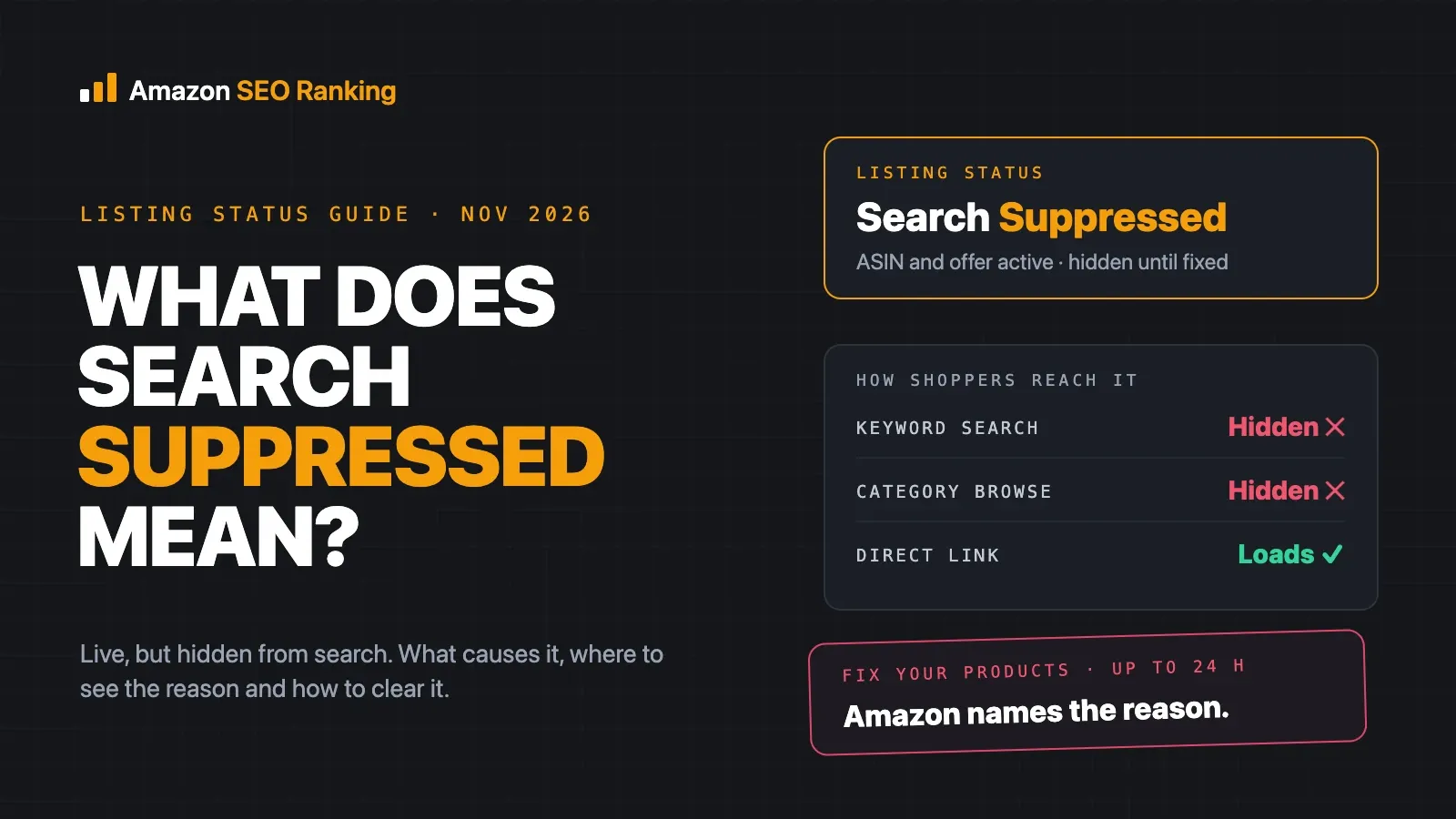
If Amazon has hidden a listing from search, our guide to being search suppressed on Amazon lists the five common causes and which of them our tools catch. Missing required attributes and price aren't among those we check; only Seller Central shows them.
Listing Products on Amazon in Bulk or in Several Marketplaces
Listing product on Amazon one SKU at a time works for a first launch. For more than a few SKUs, Professional sellers can download a category template, fill one row per product and upload the file through List Your Products. Existing listings can be edited the same way through the Category Listings report.
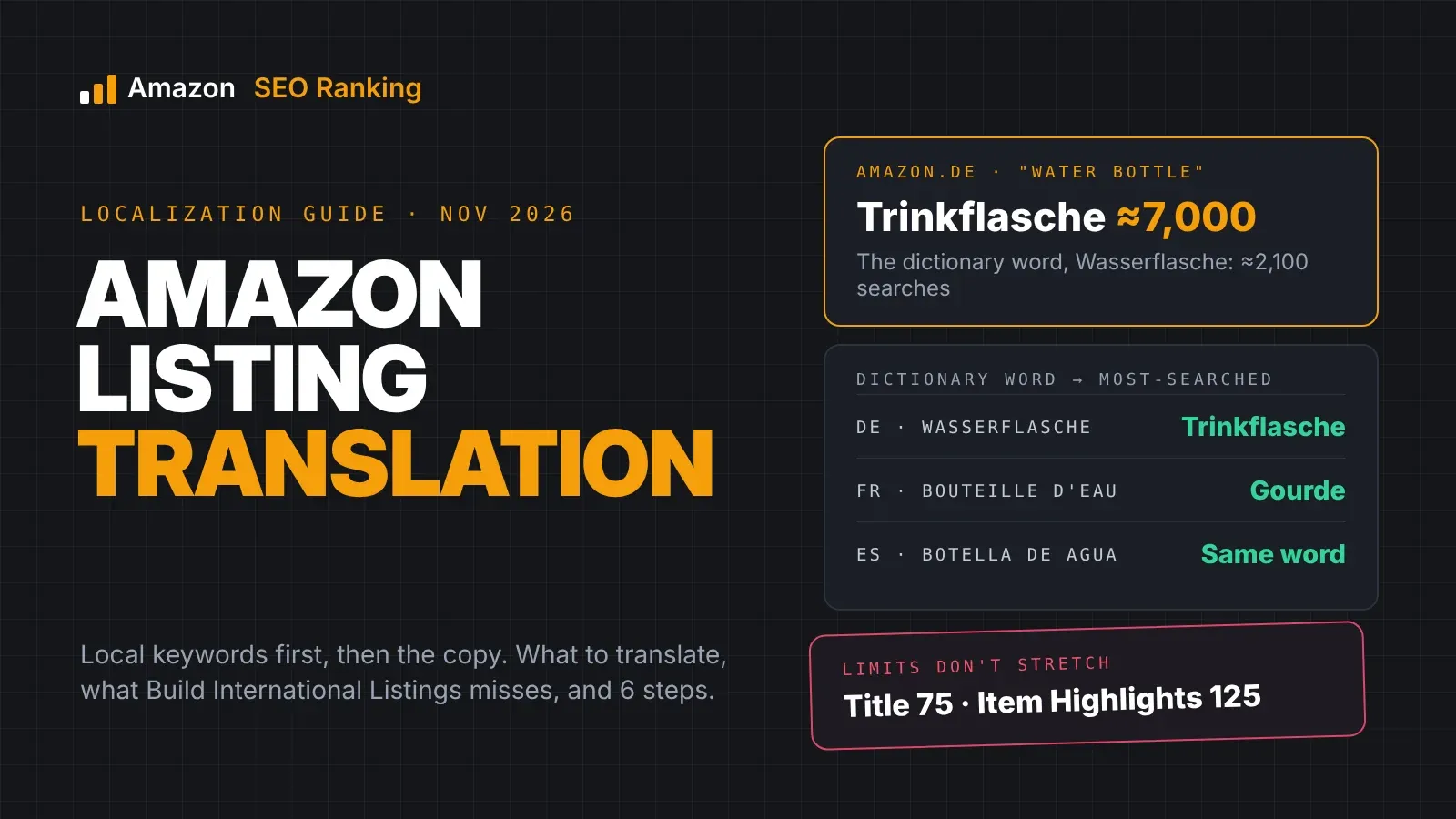
Each Amazon marketplace holds its own copy of the listing, in its own language. A US title pasted into amazon.de matches almost nothing German shoppers type, and German phrases often run longer, so a title that fits at 70 characters in English can break 75 once translated. Write and check each storefront separately. Amazon SEO Ranking's audit covers 23 Amazon storefronts, and a listing can score differently in each one, so audit every marketplace you launch in, not only your home store.
Writing that copy is the slow part of listing amazon products at scale. Once your ASINs are live, the Amazon bulk listing tool audits and rewrites up to 100 ASINs per run on Pro (500 on Agency). Each row comes back in its marketplace's language, out of 12 (Belgium in French), with a claim check on every draft.
Everything You Need to Know About Amazon Product Listings
| Topic | What to know | Rule or number |
|---|---|---|
| Starting point | Catalog > Add Products in Seller Central | Search before you create |
| Existing product | Add an offer, don't duplicate the page | "Sell this product" |
| Selling plans | Individual or Professional | $0.99 per item sold or $39.99 a month |
| Product ID | UPC, EAN, JAN or ISBN | Or a GTIN exemption per brand or category |
| Exemption timing | Wait after approval before listing | 30 minutes |
| Ways to start | Keywords, image, web URL, blank form, spreadsheet | AI drafts need checking |
| Title | Brand, product type, main keyword | 75 characters |
| Item Highlights | Comparison details, searchable | 125 characters |
| Bullets | One benefit and proof each | Up to 255; about 200 show on mobile |
| Description | What's in the box, care, use | 2,000 characters |
| Backend terms | Synonyms, no repeats | 249 bytes |
| Main image | White background, no text | Product fills about 85%; 1,000 px for zoom |
| Fulfillment | FBA or FBM | Chosen in the Offer tab |
| After launch | Check status and indexing | ASIN plus keyword search |
Check Your Listing Before and After It Goes Live
Amazon SEO Ranking is built around one job: making an Amazon listing rank better. Its audit scores a live listing on 12 published criteria, each counting equally, so you can see exactly where points are lost. Every AI rewrite is grounded in the listing's own spec table and your brand fact sheet, then checked in code for Amazon's 75 and 125-character limits, pack-count mismatches and claims your product data doesn't back, like the "organic" in the Northbay example.
It's built for new sellers launching their first ASINs, brand teams moving a range onto Amazon and agencies listing products for clients, and it's trusted by eRetail Search specialists at Nestlé and eCommerce SEO agencies such as Reach AI. Before your ASIN exists, the free Amazon listing requirements and character limits checker and the backend keywords checker test your draft copy with no account; Pro and Agency teams can run the full copy check inside Claude through the connector. To see what the top listings in your niche do better, the Amazon competitor analysis tool runs the same audit on your listing and up to two rivals side by side. It uses one audit per listing, so a three-way comparison takes a free account's full month.
Titles still over 75 characters are being rewritten by Amazon's AI right now. The free plan includes 3 full audits a month with no credit card required. Monthly Pro is $79 with a 7-day free trial and a 14-day money-back guarantee.
FAQ
How do I create a product listing on Amazon?
You create a product listing on Amazon in Seller Central by going to Catalog > Add Products, searching for your product, and choosing Create a new listing if no exact match exists. You then pick a product type and fill in the product ID, brand, title, bullets, description, images and offer details. Titles are limited to 75 characters, with 125 more in Item Highlights. Submit when every required field is complete, or save as a draft while you wait for a GTIN exemption or approval.
How much does it cost to list a product on Amazon?
Listing a product on Amazon is free on the Individual plan, which charges $0.99 per item sold instead of a monthly fee. The Professional plan costs $39.99 a month whether you sell or not, with no per-item fee. Both plans add a referral fee on each sale. Amazon suggests the Individual plan for sellers selling fewer than 40 items a month, and FBA adds fulfillment and storage fees on top.
Do I need a UPC to list a product on Amazon?
You need a UPC or another GTIN to list most products on Amazon, unless you get a GTIN exemption. In the US the code is usually a 12-digit UPC, while Europe uses EAN and Japan JAN. You don't need your own UPC to add an offer to a product that's already listed. Exemptions are requested during listing creation, once per brand or category, and Amazon says to wait 30 minutes after approval before listing.
What is the character limit for an Amazon product listing title?
The character limit for an Amazon product listing title is 75 characters, spaces included, in all categories except media since July 27, 2026. Amazon adds a separate 125-character Item Highlights field shown under the title, which keeps the total at 200 visible characters. Titles over 75 characters are being updated to Amazon's AI-written version. Bullets can run to 255 characters each and descriptions to 2,000.
Can I sell a product that is already listed on Amazon?
You can sell a product that is already listed on Amazon by adding your offer to its existing product page. Search for it under Catalog > Add Products, check that brand, model, size and pack count match exactly, and click Sell this product. You then enter your own SKU, price, quantity, condition and fulfillment method. Creating a duplicate page for the same product risks it being merged or suppressed.
What is the difference between an FBA and an FBM Amazon listing?
The difference between an FBA and an FBM Amazon listing is who stores and ships the orders. With FBA, Amazon holds your inventory in its fulfillment centers and ships each order, and the offer is typically Prime-eligible. With FBM, you store and ship orders yourself. You choose between them in the Offer tab of the listing form, and you can switch a SKU later.
Can I use AI to create an Amazon listing?
You can use AI to create an Amazon listing, including Amazon's own tools, which draft a listing from a few keywords, a product photo or a URL from your website. Check every field the AI fills before you submit, because AI drafts can exceed the 75-character title limit or add claims your product can't support. In our worked example, a single unsupported word ("organic") was flagged by both the claim check and the policy scan. On a live listing, Amazon SEO Ranking's free audit runs that claim check against the spec table; before launch, the Claude connector's copy check does the same on Pro and Agency.
Do I need a paid tool to create an Amazon listing?
You don't need a paid tool to create an Amazon listing, because Seller Central has everything required to publish one. A tool helps with the parts Seller Central doesn't check for you: keyword search volume, character counts across all fields, claims your spec table doesn't support, and a score once the listing is live. Amazon SEO Ranking's character limit checker and backend keywords checker are free with no account. The free plan includes 3 listing audits a month with no card.
Run your free Amazon listing audit the day your ASIN goes live, or compare Pro and Agency pricing.
Run your free Amazon listing audit